Note: There are many different AI image generators (and more every day). These tips reflect our design team’s experience (as of April 2026) with the tools that have worked well for us, namely ChatGPT, Gemini and Microsoft Copilot. Your mileage may vary!
What AI does well:
AI illustration shines when you already know what you want and just need a quick way to get the concept on “paper.” It’s also a great brainstorming partner when you have a goal but not a fully formed idea. Think: “Show me logo concepts that say ‘abc’ and use x, y and z elements in blue and green.
Perhaps the biggest benefit of using AI over stock illustration is that you can tailor the image to include specific elements unique to your brand or region. For example, you can have it generate an image of Mount Saint Helens or the Seattle skyline in the background of your scenic illustration.
Our design team has successfully used AI for the following projects:
Multiple logo concept generations and ideas
Highly conceptual, artistic images to add interest in presentations
Rendering a school mascot in multiple different positions
Custom illustrations to use in a logo or design
Stylized artwork with regional/topical elements
Generating life-like stock images for use in articles
Five Ways to Improve Your AI Prompts
Give specific details about the subject matter
Specify an art style or a specific famous artist’s style
Tell it if you need room for text or need the image in a certain orientation (vertical, horizontal, or square)
State that you need the image simplified for easy vector tracing later (this is important for being able to reproduce the generated image in your brand colors)
When it makes a mistake, ask it why
Pro Tip from ChatGPT
Start Broad, Then Refine
Many users try to write the perfect prompt on the first attempt. In our experience, it works better to start with a simple concept, evaluate the results and then refine through a series of follow-up prompts. Think of AI image generation as a conversation rather than a one-time request.

Click the middle and slide to see before/after images
Soaring to New Heights
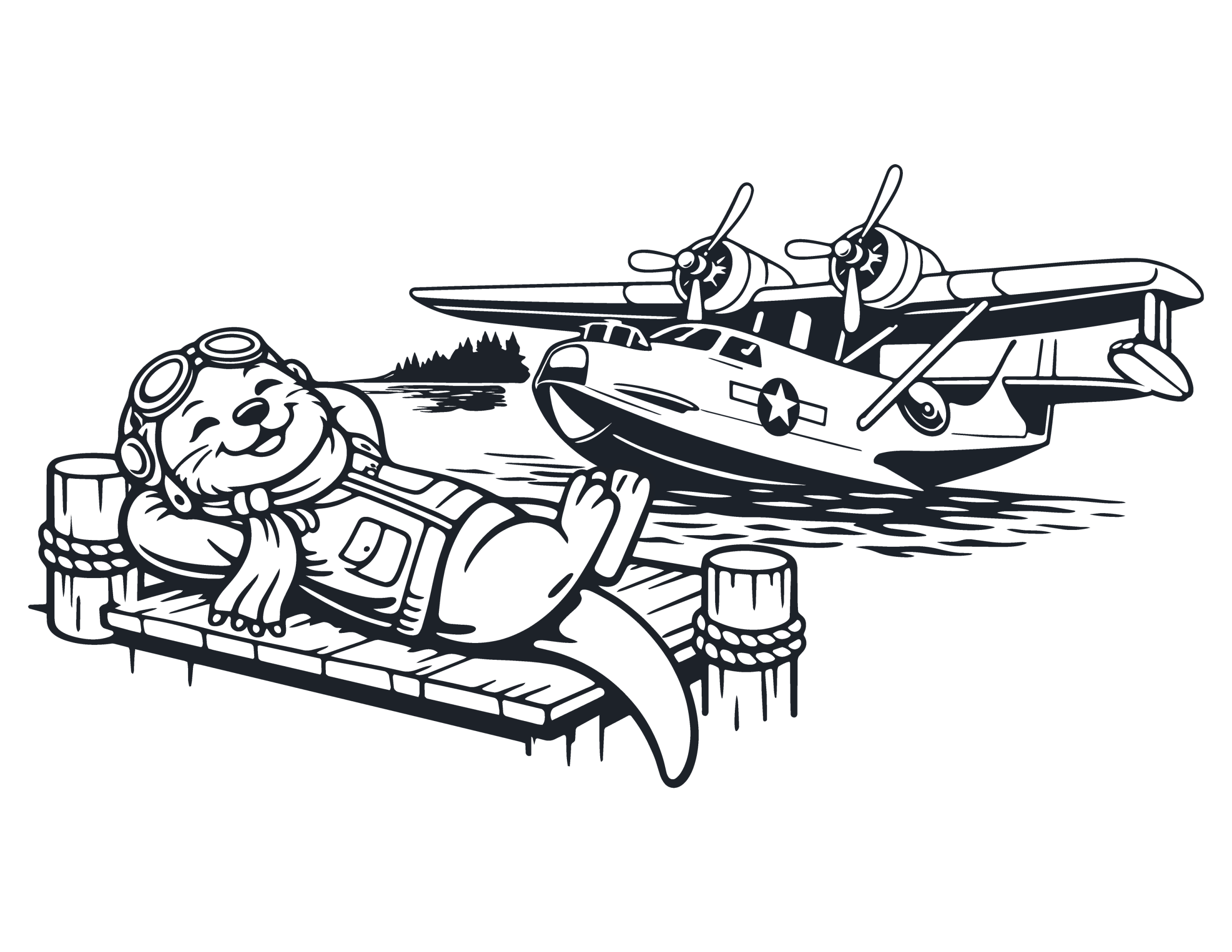
Heidi Barnes, ESD 112 Director of Creative and Web Development, used AI to create the seaplane in this illustration. Beginning with a photo of the real aircraft, she used ChatGPT to help translate it into a graphic style that fit the piece.
The AI-generated image was only the starting point; it still took professional Illustrator work to trace the artwork, clean up the details, simplify the shapes, and turn it into a polished vector file.
Where AI Falls Short:
AI has been described by researchers, engineers and economists as having a “jagged intelligence,” which means that it can do incredible, surprising tasks that are difficult for humans fairly quickly, yet it can also fail to understand certain facts that we would consider basic human intelligence.
AI’s jagged intelligence is most obvious in how it handles composition. Since each prompt regenerates the entire image using a statistical model, it resists small, targeted edits that feel simple to us. It can usually delete elements without trouble, but ask it to reposition or flip an object within the composition, and it simply can’t comply. Read our interview with ChatGPT, Gemini and Microsoft Copilot to learn more about why.
Requests Commonly Ignored by AI
Flip X to face the other direction
Move X from top left to bottom right
Nudge X down to be even with top of Y
Replace X with Y
Use only these 8 colors
Creative Problem-Solving
For one recent illustration, we found a simple workaround for AI’s composition shortcomings. We downloaded the image, erased the problem area in Photoshop, and filled it with white. Then we re‑uploaded it and asked ChatGPT to keep everything the same but extend the artwork into the blank space. It generated new content that blended seamlessly with the original and didn’t contain the original objects that we had been struggling to get it to change.
STEP 1:
Original AI generation

STEP 2:
Areas to fix are erased
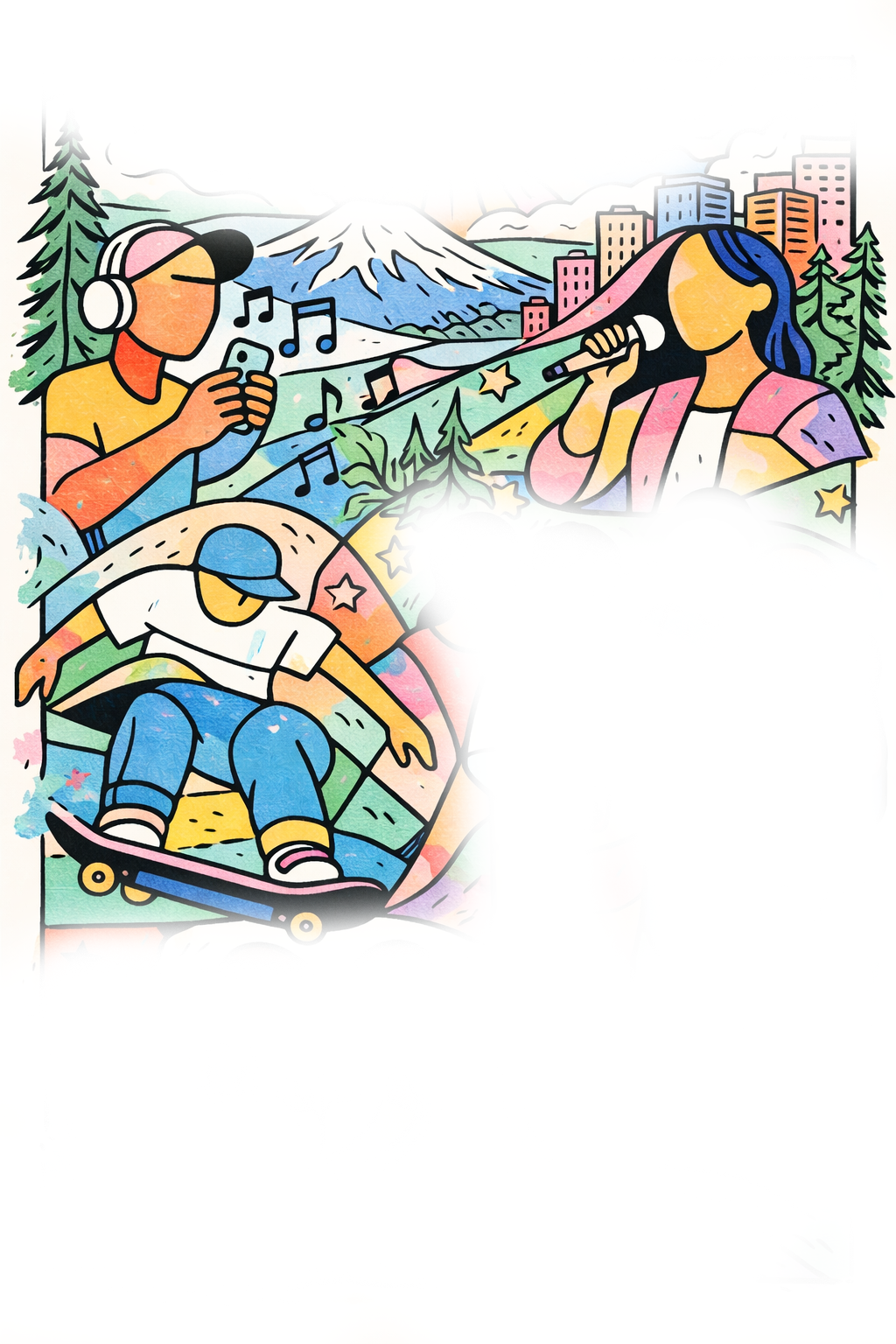
STEP 3:
AI’s fix with color change

STEP 4:
Final after designer rendering
June 2026 Update
The good news is that AI is constantly evolving and getting better. Instead of bringing an image into Paint or Photoshop to “erase” the area ChatGPT needs to fix, ChatGPT now has a Paintbrush feature under “edit” to select the areas in need of modification.
AI Colorblindness
When it comes to creating vector images in brand colors (required for logos and anything that might be screen printed), the best you can do is prompt it to “simplify the number of colors to make it easier for vector tracing in Adobe Illustrator” and then send it to a professional designer to complete that process.
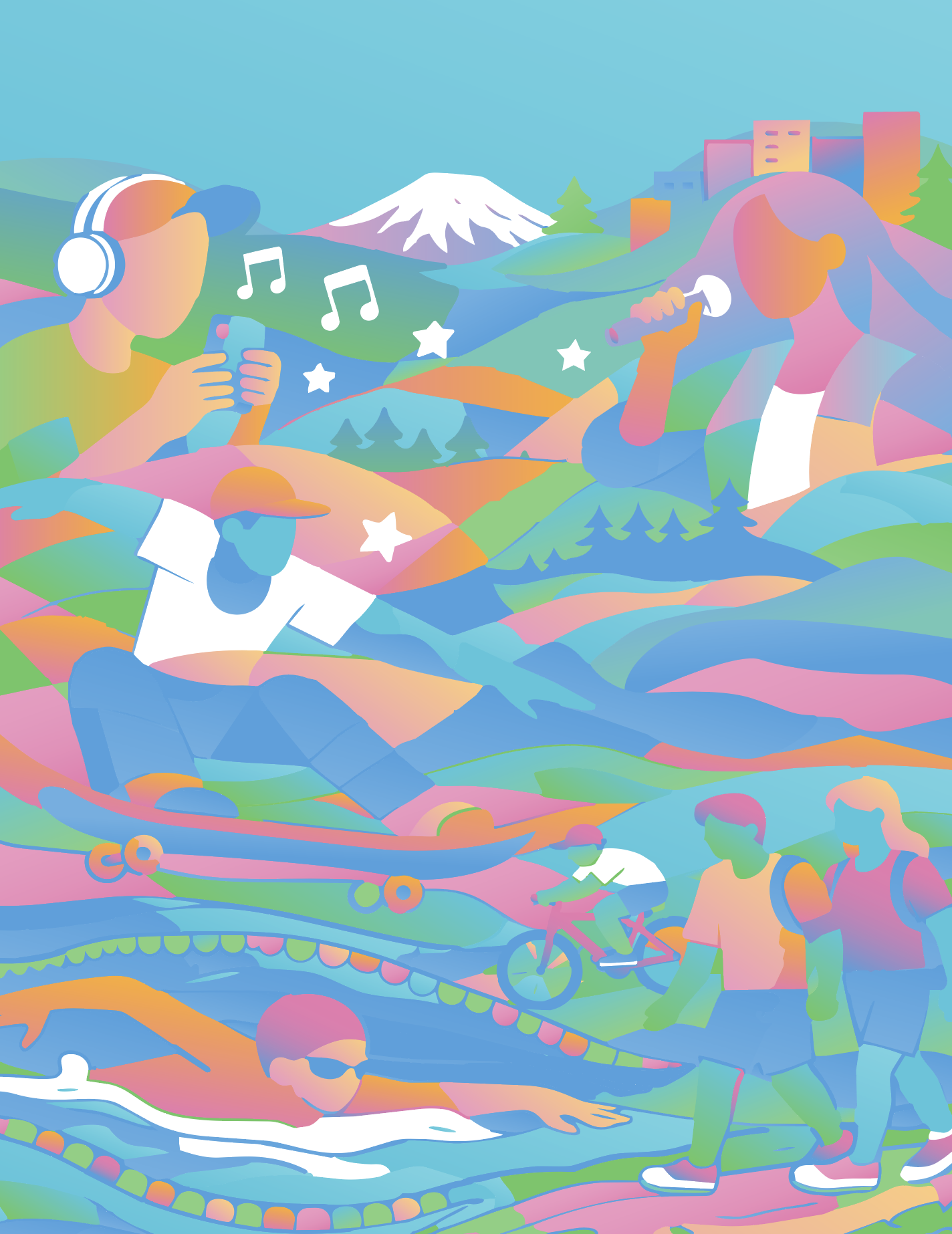
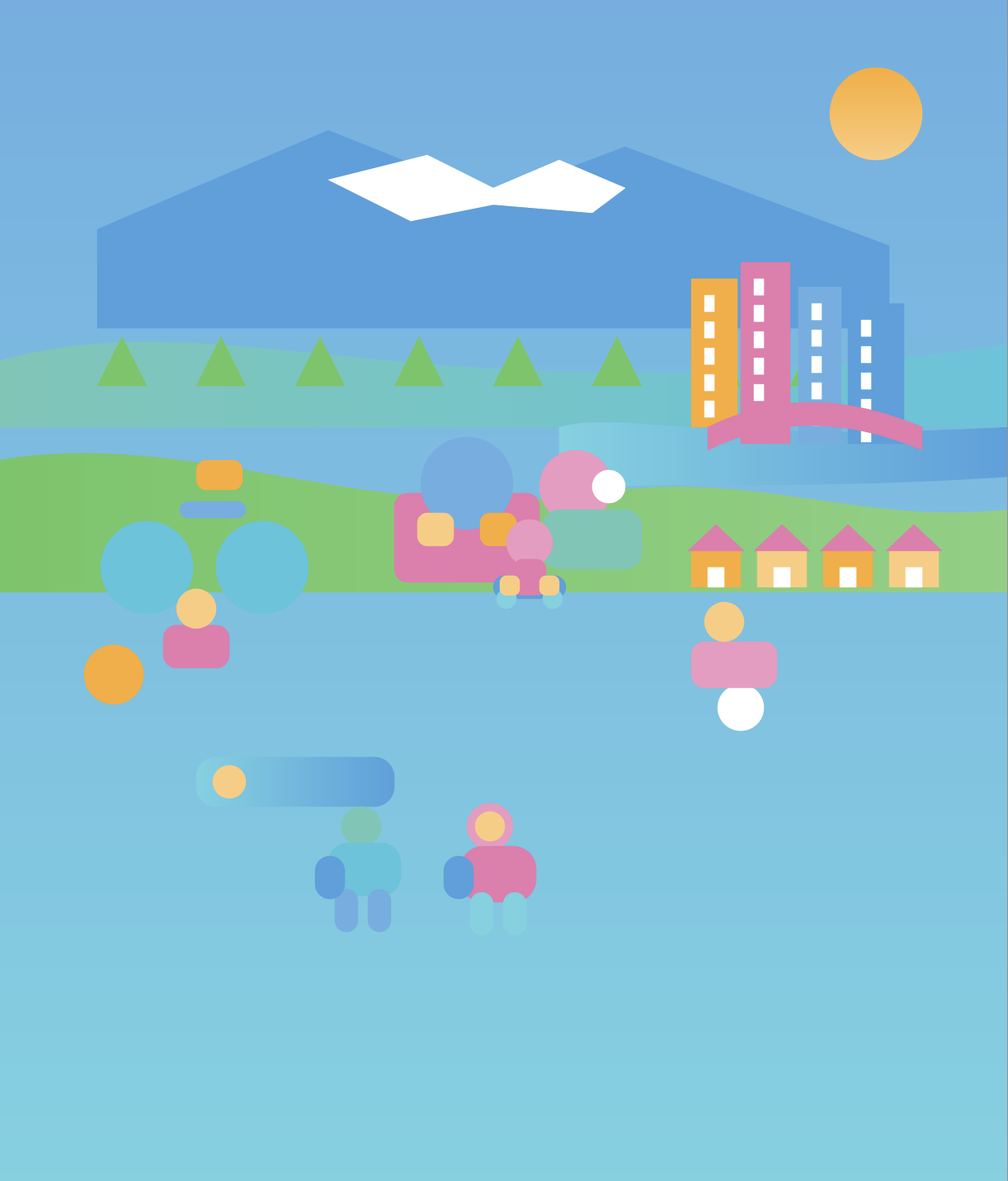
During the same prompting session for the colorful youth illustration shown above, we repeatedly asked Copilot to render the illustration using only brand colors. It repeatedly lied and said it could do it, while spitting out results that were obviously not brand colors. After being called out for lying to us, it finally admitted that it couldn’t do what we were asking. It then offered to make a vector SVG file, so we could easily recolor it ourselves. The image on the right is the resulting SVG, which looks nothing like the illustration (but has the correct colors!). Obviously, the technology has a long way to go before it can produce actual vector files.
Final Thoughts:
While the results can be unpredictable, and you definitely have to know enough about your subject to be able to correct its mistakes, AI can definitely be a time and budget-saver for certain applications. Just know that any AI illustration will need to be handed off to a professional designer to be refined for actual use in 95% of situations. Read a shop talk with our design team to learn more about what designers must do to make AI images usable.
“AI can generate a concept in minutes. Making it production-ready is a different story.”
Need an illustrator pro?
Our designers are ready to pick up the slack where AI drops the ball.